How to print a photo!
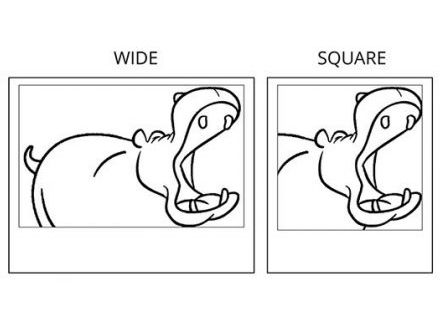
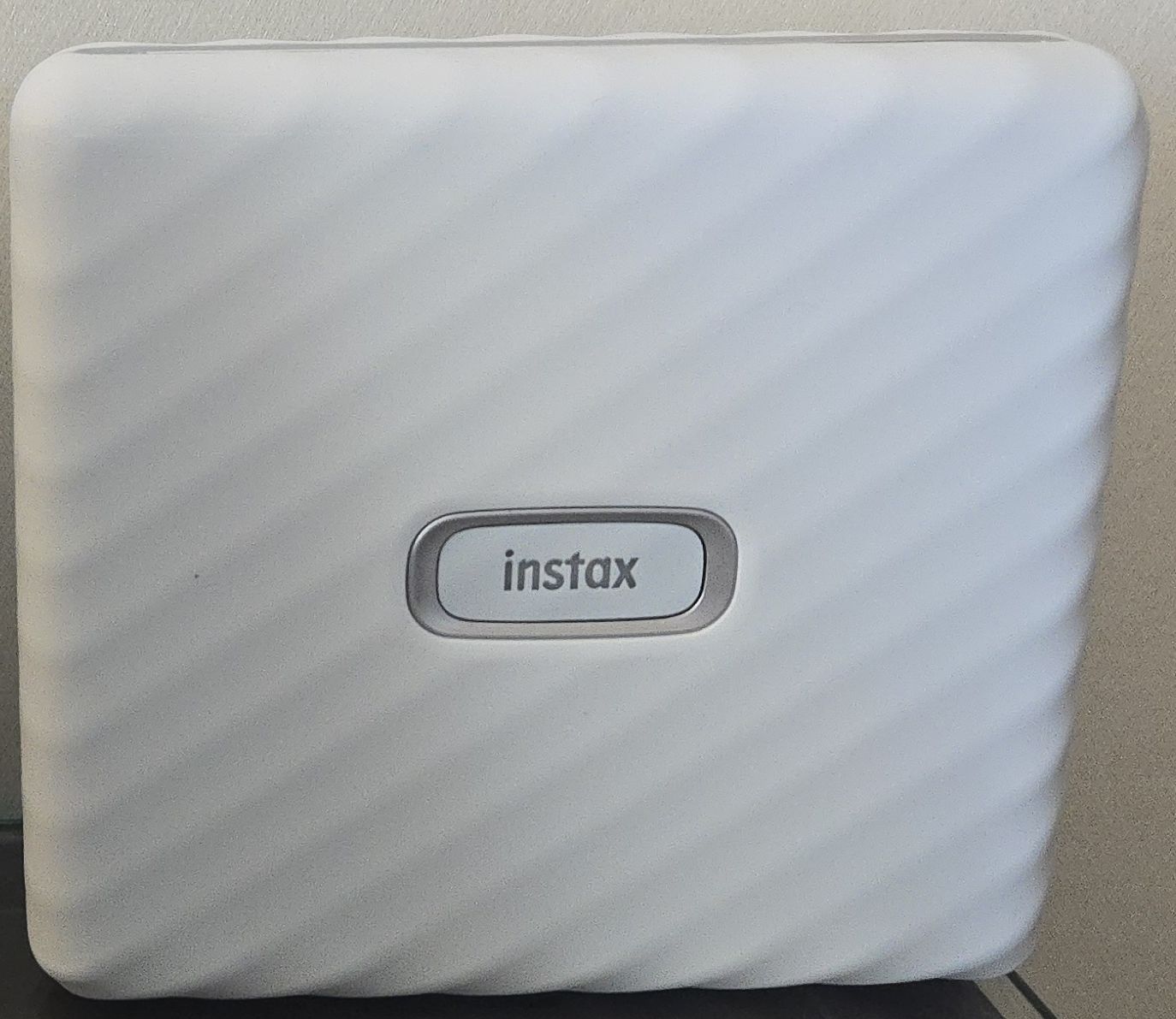
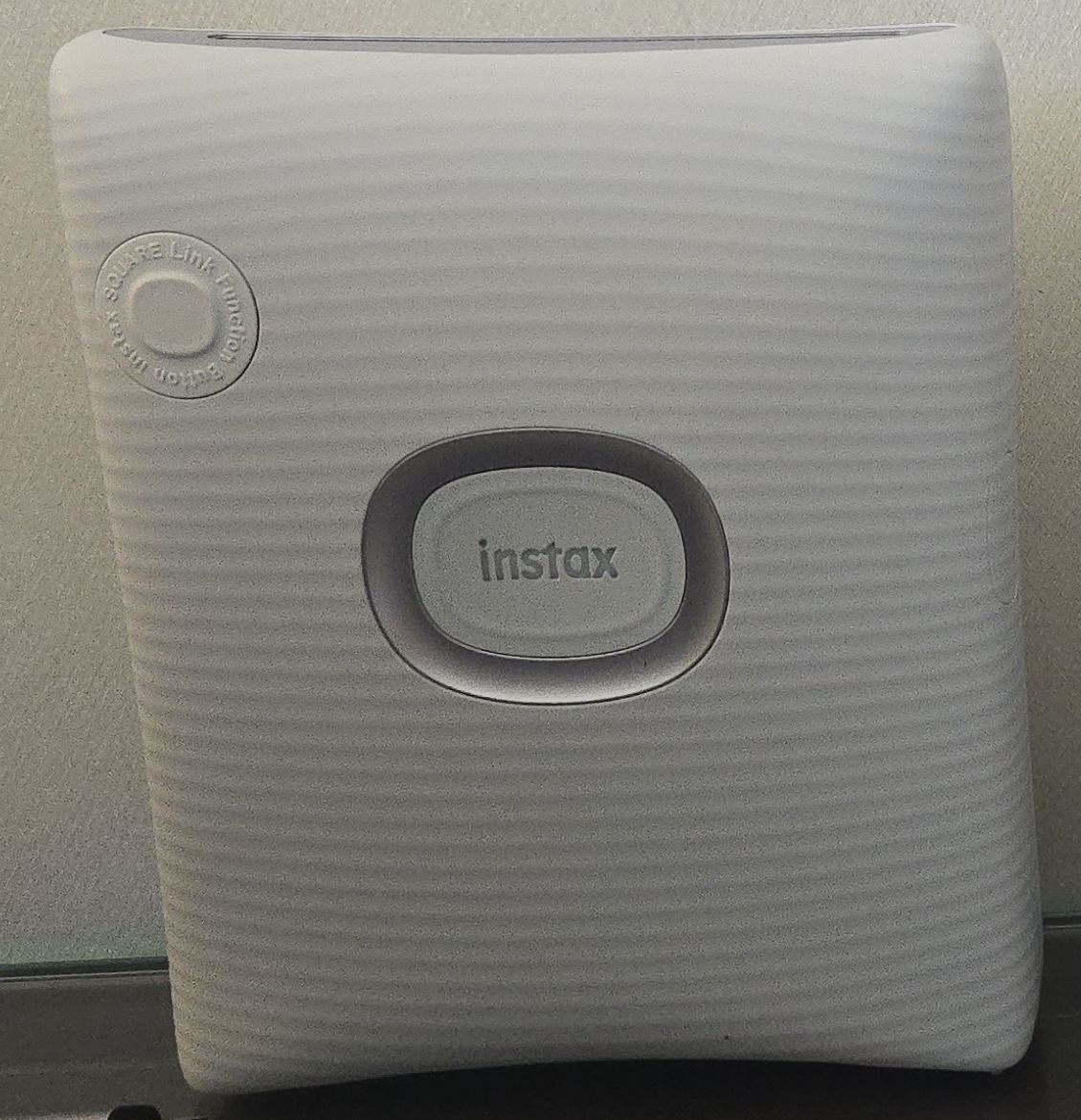
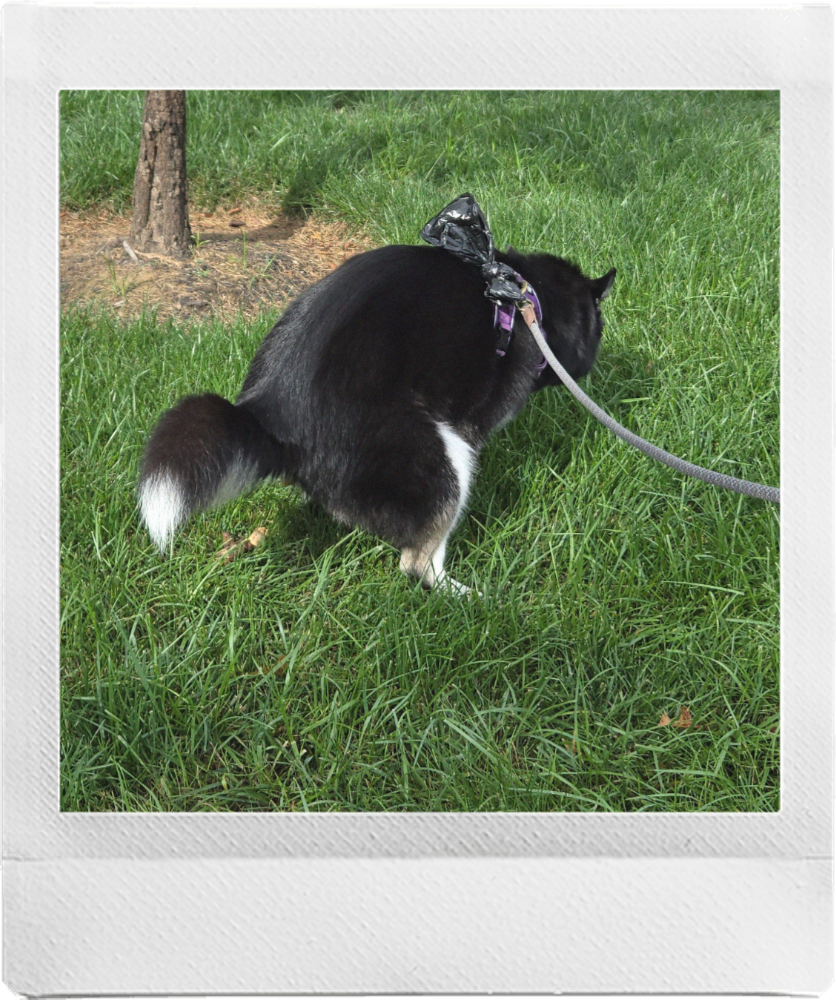
Hello and welcome to our guide to using our photo printing app! There are two picture options to choose from: WIDE, and SQUARE. Please see example below:
Printers
 |
 |
|---|---|
| WIDE | SQUARE |
The App
- Open the photo app by visiting the following link or using the QR codes placed around the venue.
- Select either
SQUAREorWIDEin the uper left hand corner
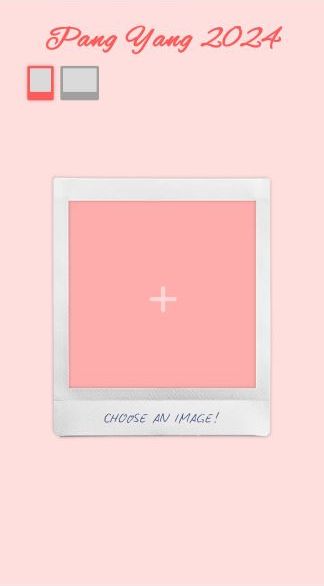
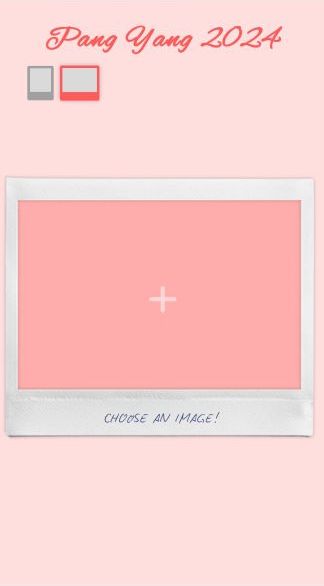
- Click the
plusicon a
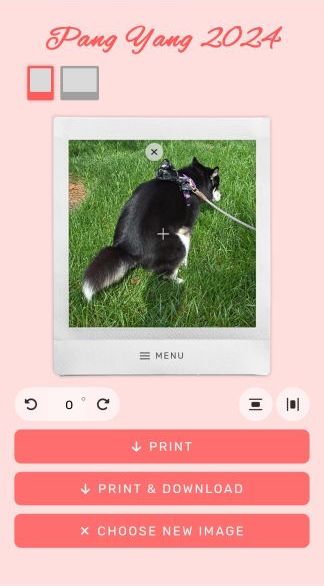
- Once the picutre is selected, you can resize (pinch zoom) and rotate (rotation buttons). From here you have three choices.

PRINTsends the picture to the printer. Continue to Step 5. sends the picture to the printer, and downloads a digital copy to your phone. Continue to Step 5.
 will reset the page, and allow you to select a new image (Go back to step 1)
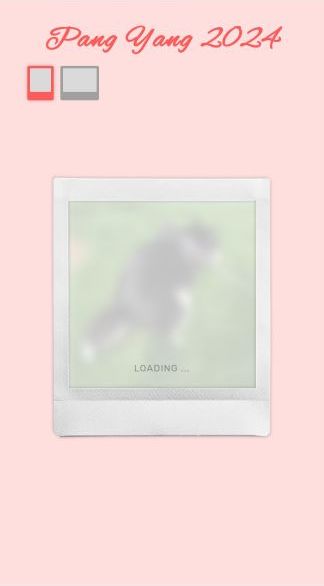
- During the print process, the iage will become out of focus and a
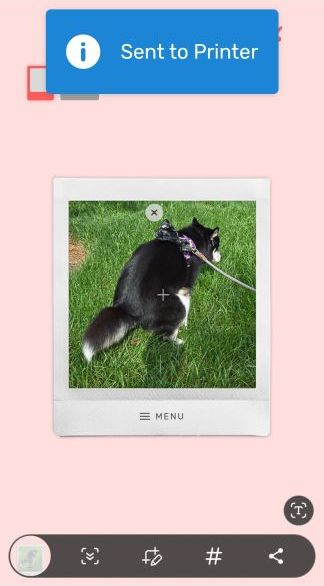
LOADING...message will appear over it. Once this is complete, a message will appear at the top of the screen informing you that your image has been sent to the printer.
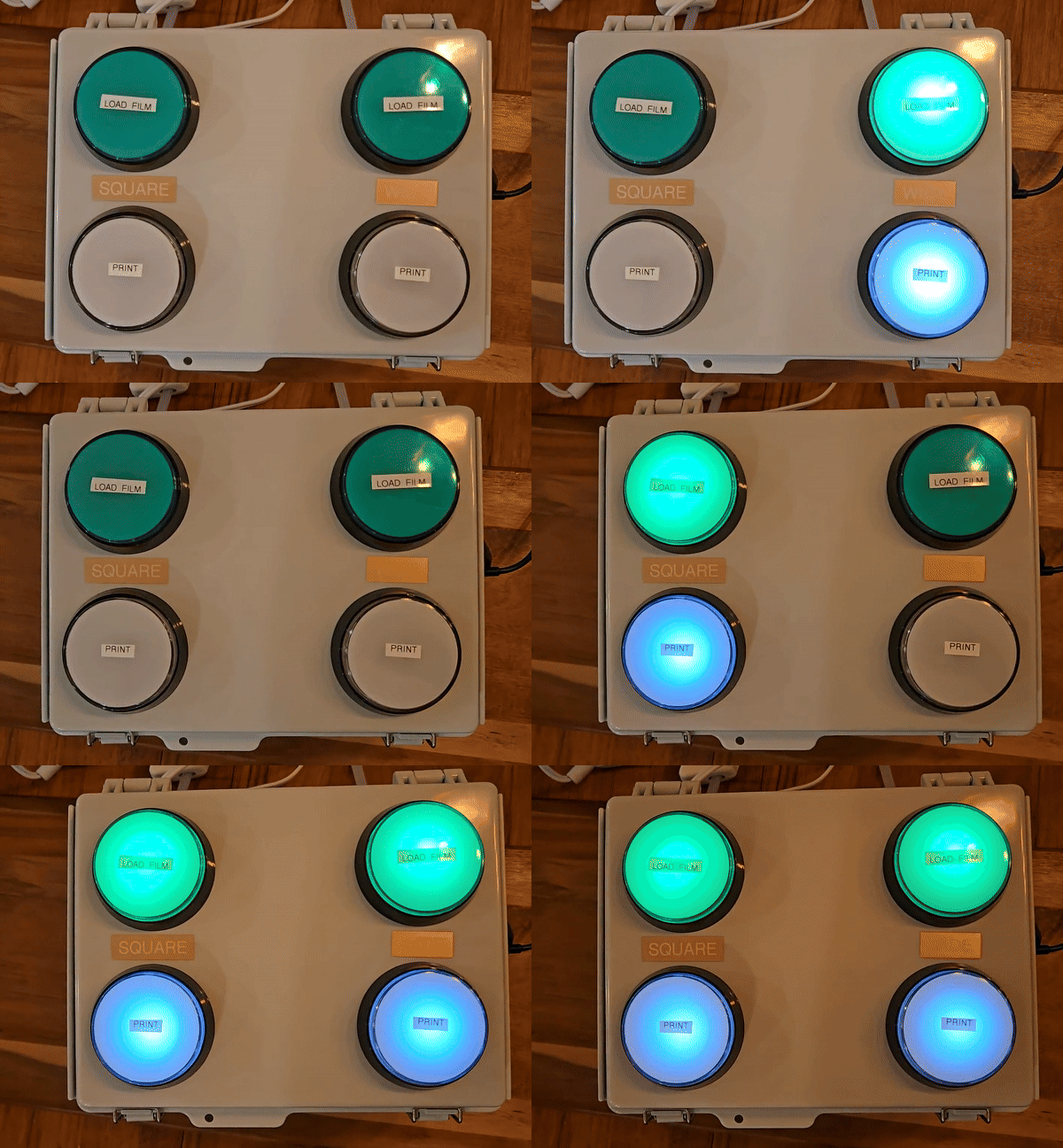
- Once the photo is sent to the printers, the white light will flash.
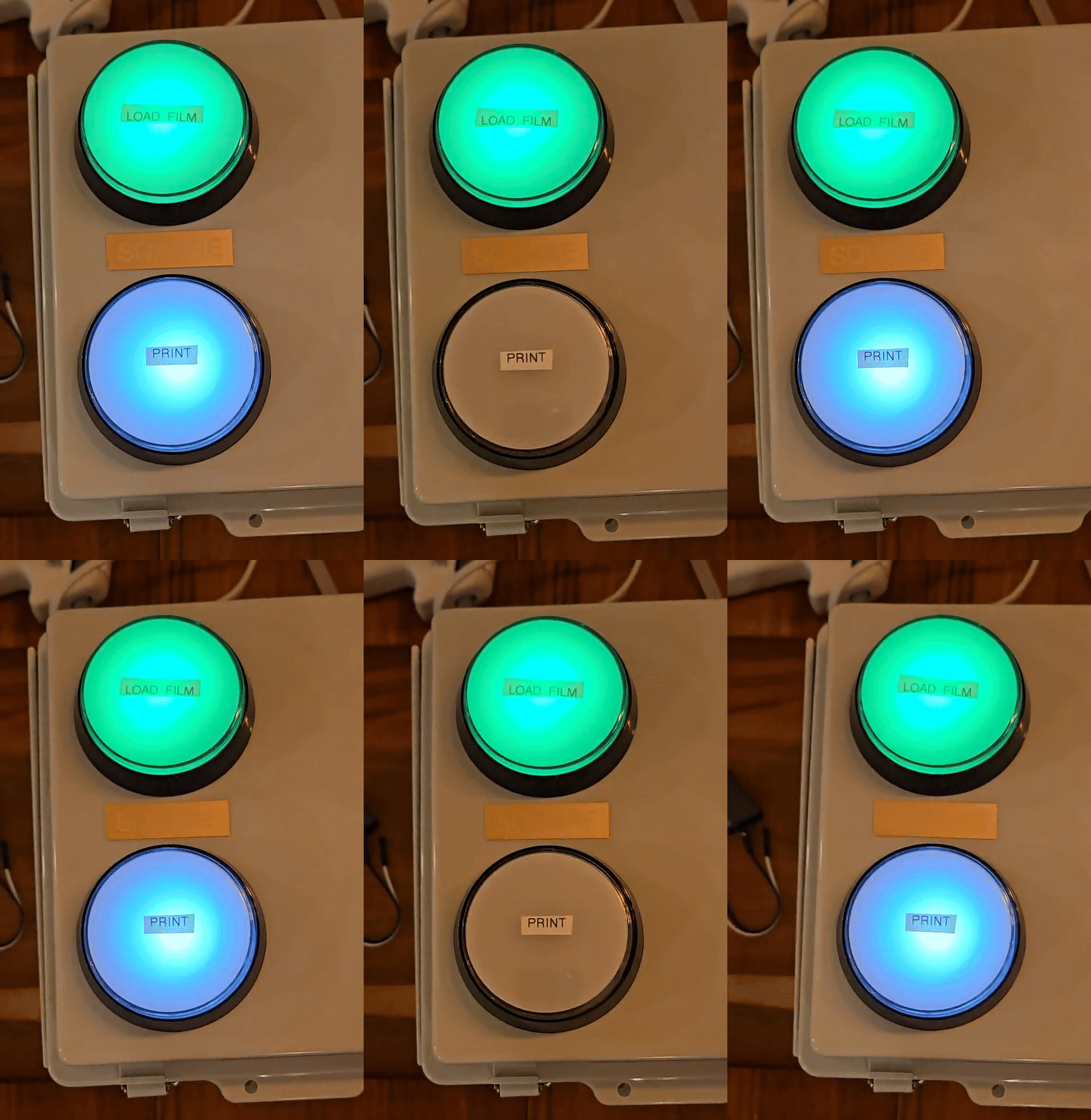
- Press the white button, and the photo will print.
Hardware
The printer is set up to automatically boot into the printing app. Generally, if there are any issues, reseeting the print control box, or the individual printers will be the solution to any printer issues.
Printer Control Box
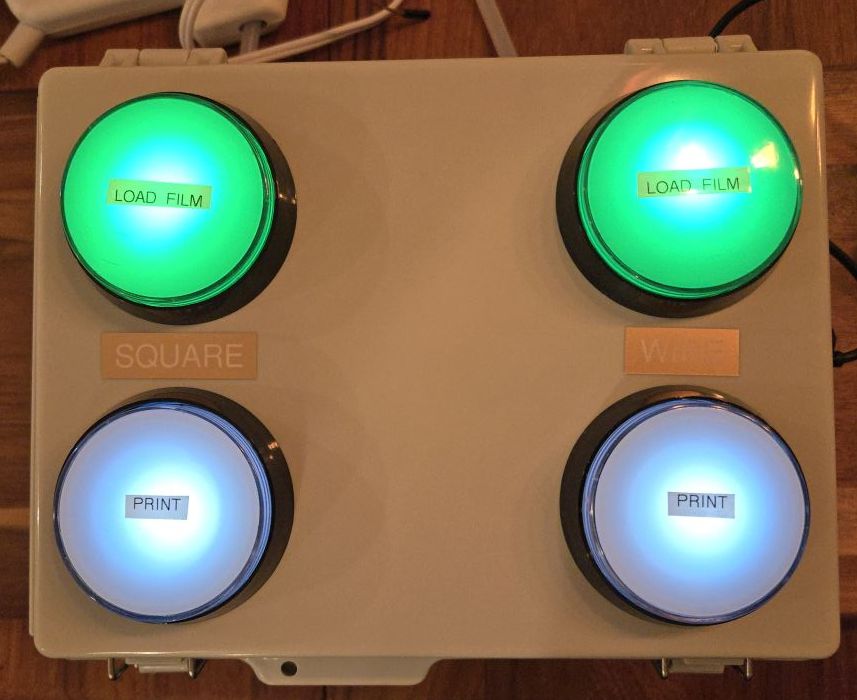
The printer control box is seperated into two sides. When facing the printer, the square controlls are on the left and the wide controls are on the right. The green button controls the film loading and the white controls printing.
The Printers
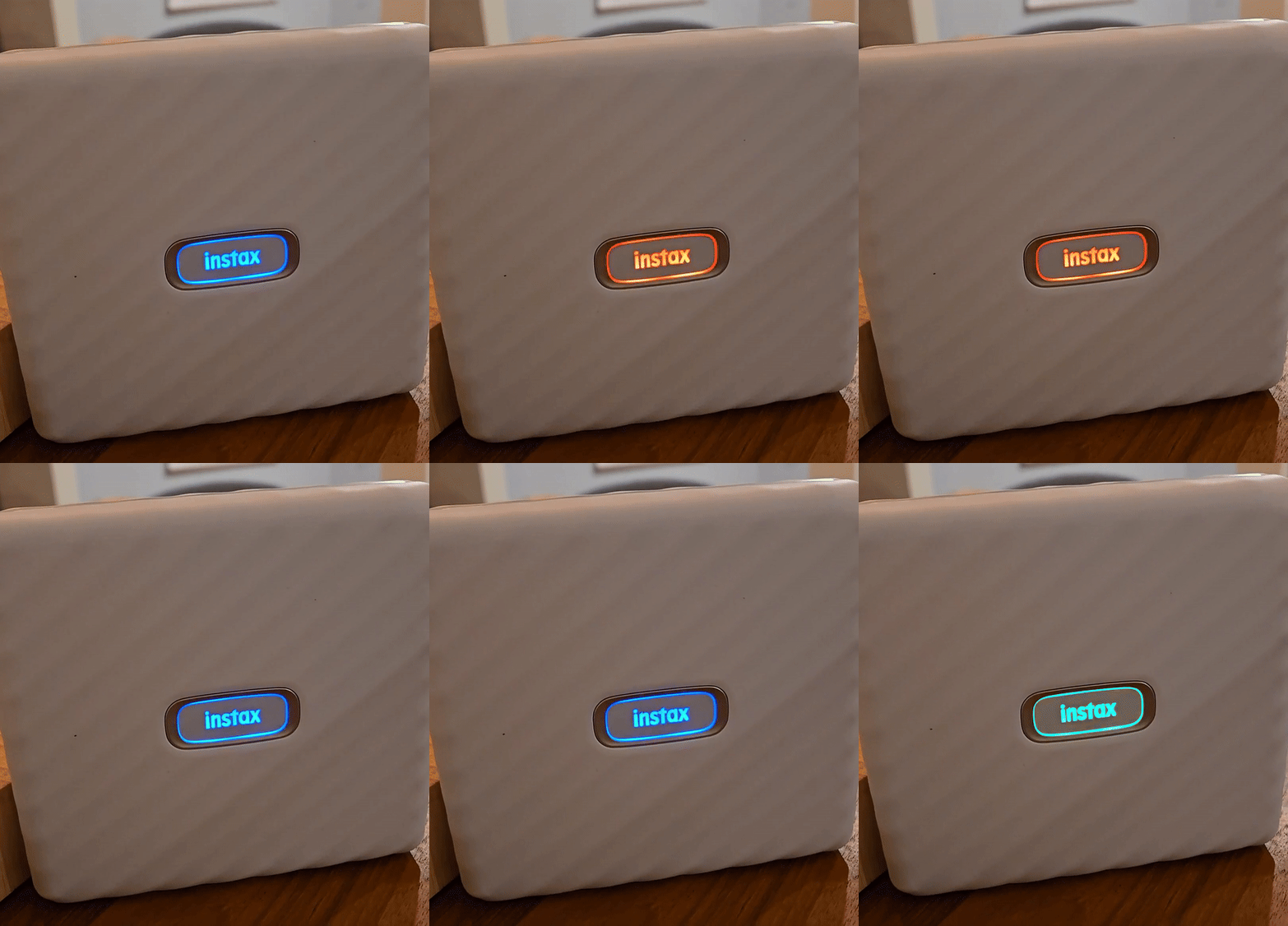
The printers will flash rainbow when they are succesfully paired.